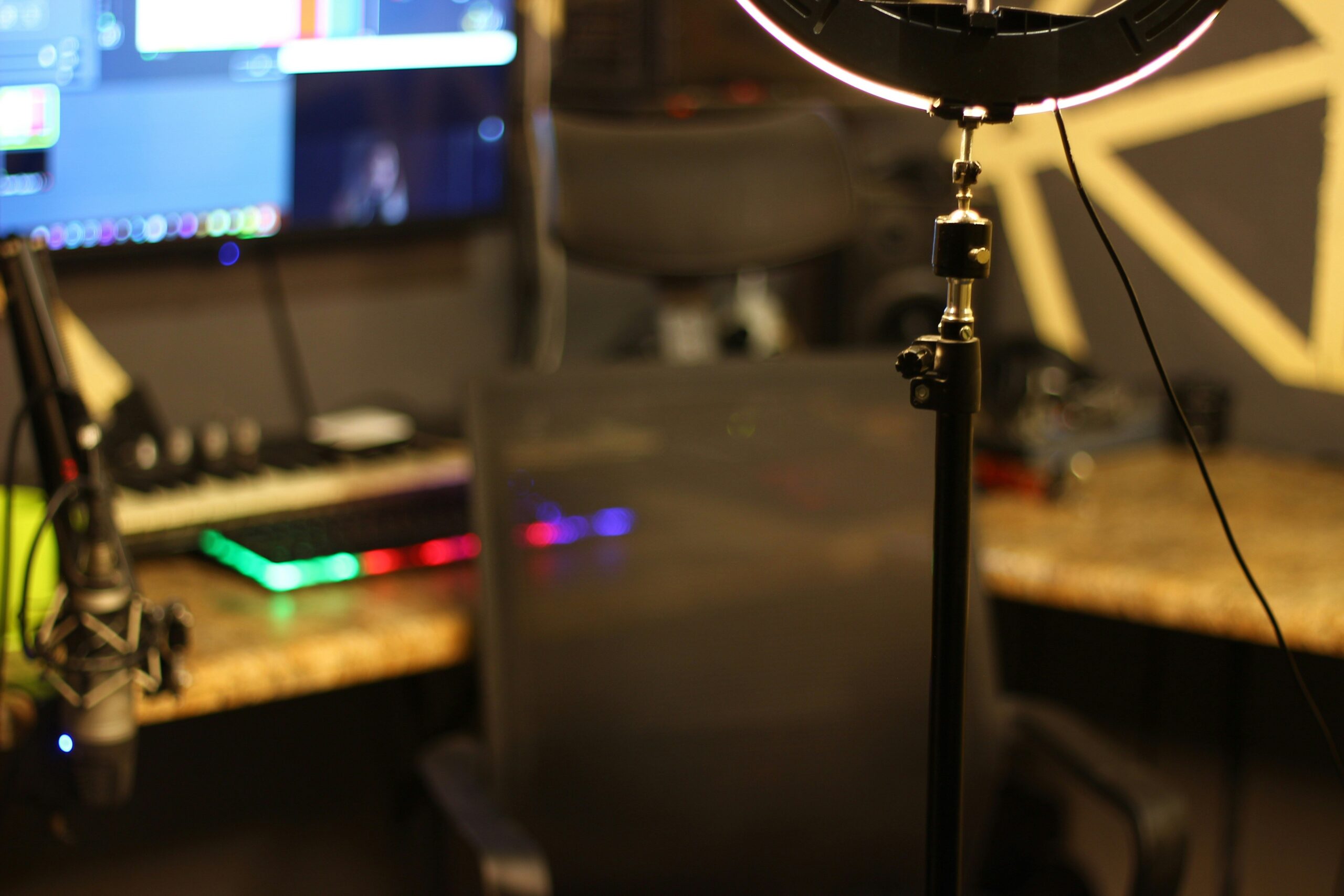
“Ever lost hours tweaking your stream only to find out the audio was cutting out? Yeah, we’ve been there.” Setting up streaming software can feel like solving a Rubik’s Cube blindfolded, but it doesn’t have to be that way. In this guide, you’ll learn how to master setup streaming software, avoid rookie mistakes, and keep your sanity intact. Ready? Let’s dive in.
You’ll discover:
- Why choosing the right software makes or breaks your streaming trial
- A step-by-step process to effortlessly setup streaming software
- Tips from pros (and one “terrible tip” I once fell for)
Table of Contents
- Key Takeaways
- Why Your Streaming Trial Feels Like a Disaster
- Step-by-Step Guide to Setup Streaming Software
- 5 Tips for Smooth Streaming Success
- Real-Life Streaming Wins (And One Epic Fail)
- FAQs About Setting Up Streaming Software
Key Takeaways
- Picking the wrong streaming software is worse than skipping breakfast—it ruins everything.
- Testing hardware compatibility before setup saves time and frustration later.
- Customize OBS Studio settings early to prevent mid-stream meltdowns.
- Never skip sound checks unless you want viewers asking, “Can everyone hear static?”
Why Your Streaming Trial Feels Like a Disaster
I’m going to confess something embarrassing: my first streaming attempt sounded like someone vacuuming while microwaving popcorn—awful. Turns out, using default audio settings without checking levels is a recipe for disaster. But here’s the thing: most people don’t even realize they’re setting themselves up for failure because they overlook basic prep steps.
Streaming isn’t just about picking cool overlays or adding neon lights; it’s about having the tech stack work seamlessly together. This means understanding bandwidth requirements, configuring encoders, and ensuring your PC specs are robust enough to handle gameplay + streaming simultaneously. Spoiler alert: not all computers were built for this.
Step-by-Step Guide to Setup Streaming Software

Step 1: Choosing Your Weapon (OBS vs Streamlabs vs XSplit )
Optimist You: “This part will be easy!”
Grumpy You: “Ugh, do I *really* need another decision?”
Start by deciding which software suits your needs:
- OBS Studio: Free, open-source, highly customizable—but has a learning curve.
- Streamlabs: Easier to use, better UI, packed with themes—but less flexible.
- XSplit: Beginner-friendly but comes at a price ($$$) if you go premium.
Step 2: Preparing Your Hardware
Ensure your gear plays nice with the software:
- Webcam: Logitech C920 is solid; anything cheaper might lag.
- Mic: Blue Yeti dominates, but budget options exist (just test them).
- CPU/GPU: Aim for an i5 processor and GTX 1660 or above.
Step 3: Configuring Settings
For OBS users:
- Navigate to Settings > Output. Choose “Simple” mode.
- Set Bitrate to ~4000kbps (higher values risk crashing).
- Create two scenes: Restream scene and Gameplay scene.
5 Tips for Smooth Streaming Success
Tip #1: Run Dry Runs
Test EVERYTHING beforehand. Seriously, no last-minute surprises.
Tip #2: Monitor Chat Engagement
If people stop chatting, chances are something went wrong technically.
Terrible Tip That Nearly Killed My Stream:
Don’t skimp on internet speed! Once, I tried streaming over Wi-Fi shared with five roommates—result? A pixelated nightmare.
Real-Life Streaming Wins (And One Epic Fail)
When Mark started his Twitch journey, he thought throwing money at expensive equipment would guarantee success. Wrong. After almost quitting due to constant crashes, he simplified things: upgraded RAM, switched to Ethernet, and customized OBS specifically for his rig. Voilà—a smooth operation!
FAQs About Setting Up Streaming Software
Q: Is OBS really free? No hidden costs?
Absolutely free! Just invest in decent hardware and tutorials.
Q: Can beginners handle XSplit without prior experience?
Yes, though expect fewer features compared to its paid counterpart.
Conclusion
Setting up streaming software may initially seem overwhelming, but breaking it into manageable chunks makes it achievable—even fun. Remember to prioritize hardware compatibility, configure settings wisely, and practice patience during your streaming trials.
So, grab that coffee, fire up OBS, and start creating streams worth watching. And when life feels chaotic, remember: Like dial-up internet noises echoing through time, persistence always pays off.
Haiku Time:
Bits collide, streams flow,
Your voice meets eager ears—click!
Welcome to the stage.

